Plans and billing
Plans
xSPECTRE has three plans: Essentials, Professional and Enterprise. Each is sized by how many internal assets you want to cover. Plans differ in how many perimeter IP addresses, web applications and sites they include, how often scans can run, and whether Early Warning is included.
Prices are in Australian dollars and include GST. See Pricing for current plans and prices.
Free trial
New accounts start with a 14-day free trial. No credit card is needed to start. The trial end date is shown under Subscription (Trial ends) and on Plan & usage (Trial expires).
To keep using xSPECTRE after the trial, choose a plan and add a payment method before the trial ends.
A bar at the top of the dashboard shows your trial and billing status, for example "Trial ended — scanning is paused". Use Add payment method or Choose a plan in the bar to sort it out.
Subscription page
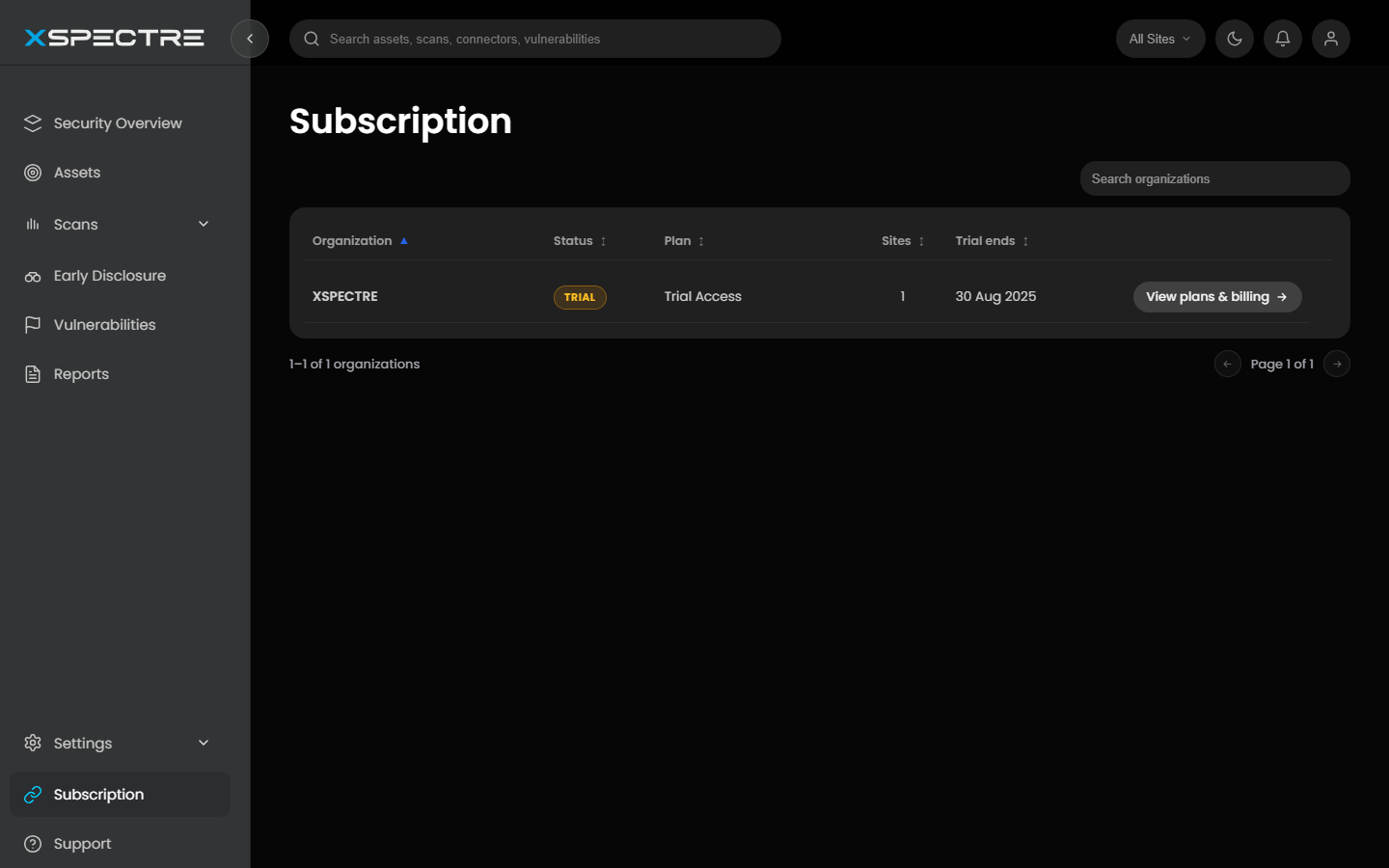
Subscription is in the left menu for administrators. It lists your organisations with their Status (Trial, Active or Manual), Plan, Sites and Trial ends. Select View plans & billing to open Plan & usage.
Plan & usage
| Tab | What it shows |
|---|---|
| Plan & usage | Current plan, status, billing cycle, current period, next renewal, estimated next invoice and active add-ons. Usage this period shows Perimeter IPs, On-Premise IPs, Web App FQDNs and Early Warning against your limits, plus Site usage. Limits with no cap show as Unlimited. |
| Billing details | Billing name, email, phone, ABN / Tax ID and billing address. |
| Payment method | Your saved cards. Select Add payment method; card details are handled by our payment provider and xSPECTRE never stores full card numbers. |
| Invoices | Invoice history with amount, status and Download invoice PDF. Select Pay this invoice to pay an invoice on xSPECTRE pages. |
| Plans & add-ons | Compare plans, change plan and add or remove add-ons. |
Change plan
- Open Plans & add-ons and select Choose plan on the plan you want (or Contact sales for Enterprise).
- Check the Review plan change summary: pricing, effective date and Plan limits review.
- Select Apply change (or Request approval where approval is needed).
Add-ons
Add-ons extend your plan without changing it, for example additional perimeter targets, additional internal assets, additional web apps, Early Warning (Essentials) or an additional scanner appliance. Use Add add-on, Update or Remove on the Plans & add-ons tab.
Cancelling
There is no cancel button in the dashboard. To cancel, raise a ticket in Support (category Account Issue) or email [email protected].
Billing questions
Email [email protected] or raise a ticket in Support. For a new quote or Enterprise pricing, use Contact sales in the dashboard or contact us.