Assets
Assets is your inventory of hosts and web applications. It is built automatically from your scans, so you do not add assets here directly.
How assets get into the inventory
- The targets you enter in a Web Scan or Network Scan (including scheduled scans).
- Hosts discovered when a scan covers a range of addresses.
To add a new asset, add it to a scan or a scan schedule.
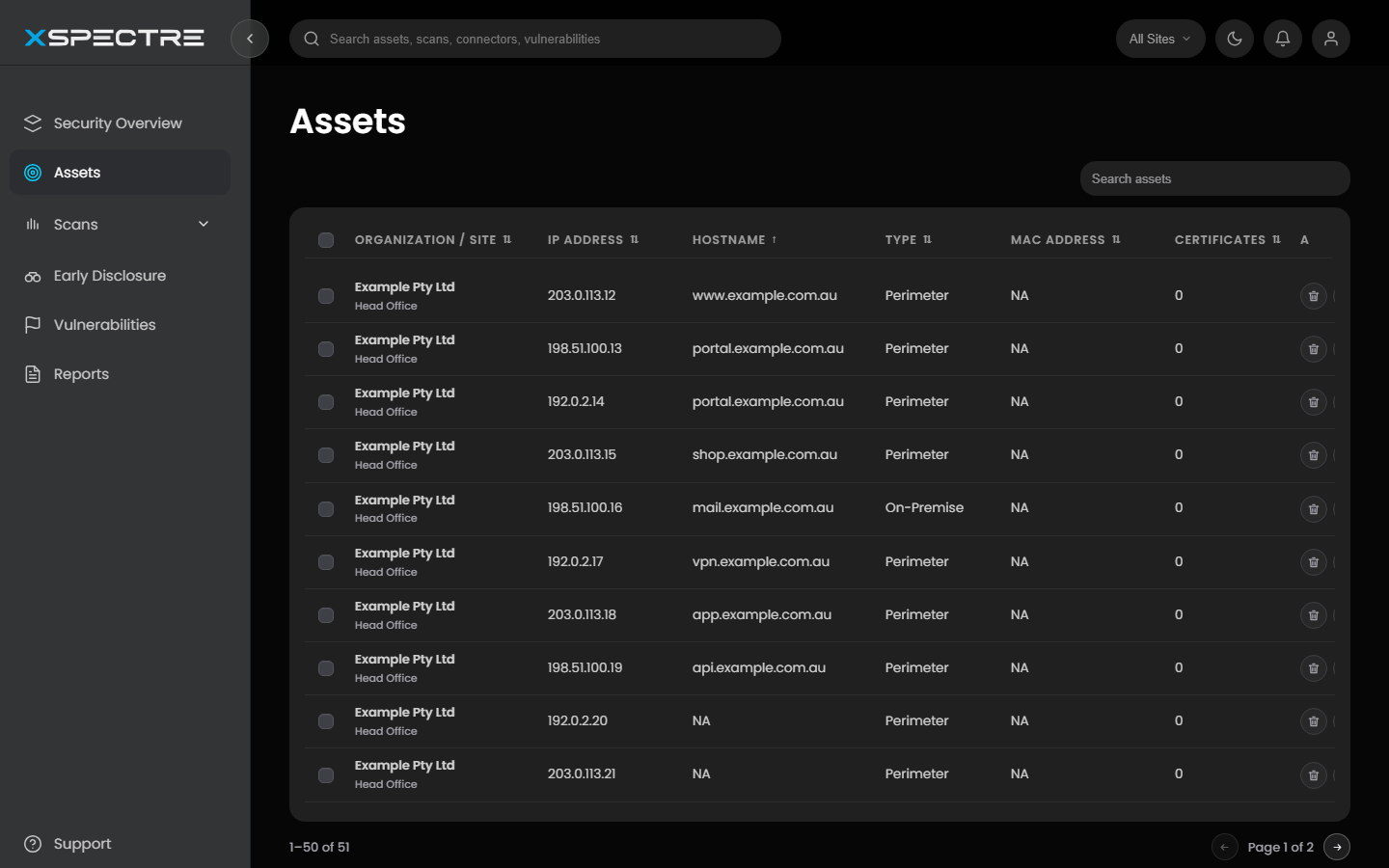
Columns
| Column | Shows |
|---|---|
| Organization / Site | Which organisation and site the asset belongs to. |
| IP Address / Hostname | How the asset was reached. |
| Type | Web App, Perimeter (internet-facing) or On-Premise (internal). |
| MAC Address | Shown for internal assets when it can be detected. |
| Certificates | Number of TLS certificates found. |
Use Search assets to find an asset by IP address or hostname.
Asset detail
Select an asset to open Asset Detail:
- IP Address, Hostname, Operating System, MAC Address, Manufacturer, number of Vulnerabilities and Last Scan.
- Software, Open Ports and Certificates found on the asset.
- Vulnerabilities: the findings for this asset. Select one to open its detail page.
Exclude or delete an asset
| Action | What happens |
|---|---|
| Exclude | The asset is skipped in future scans. Use Include to bring it back. |
| Delete asset | The asset is permanently removed. This cannot be undone. |
You can act on one asset from its row, or select several and use the buttons above the list.
Plan limits
Your plan includes a number of perimeter IPs, internal assets and web app addresses. See usage under Subscription › Plan & usage, and Plans and billing.