Early Warning
When a new security flaw becomes public, it can take days or weeks before it has a full record in official vulnerability databases. Scanners that rely only on those databases cannot see it yet. Early Warning closes that gap.
It tracks flaws that are already public but not yet in official databases, and matches them to the software and devices xSPECTRE has seen in your environment.
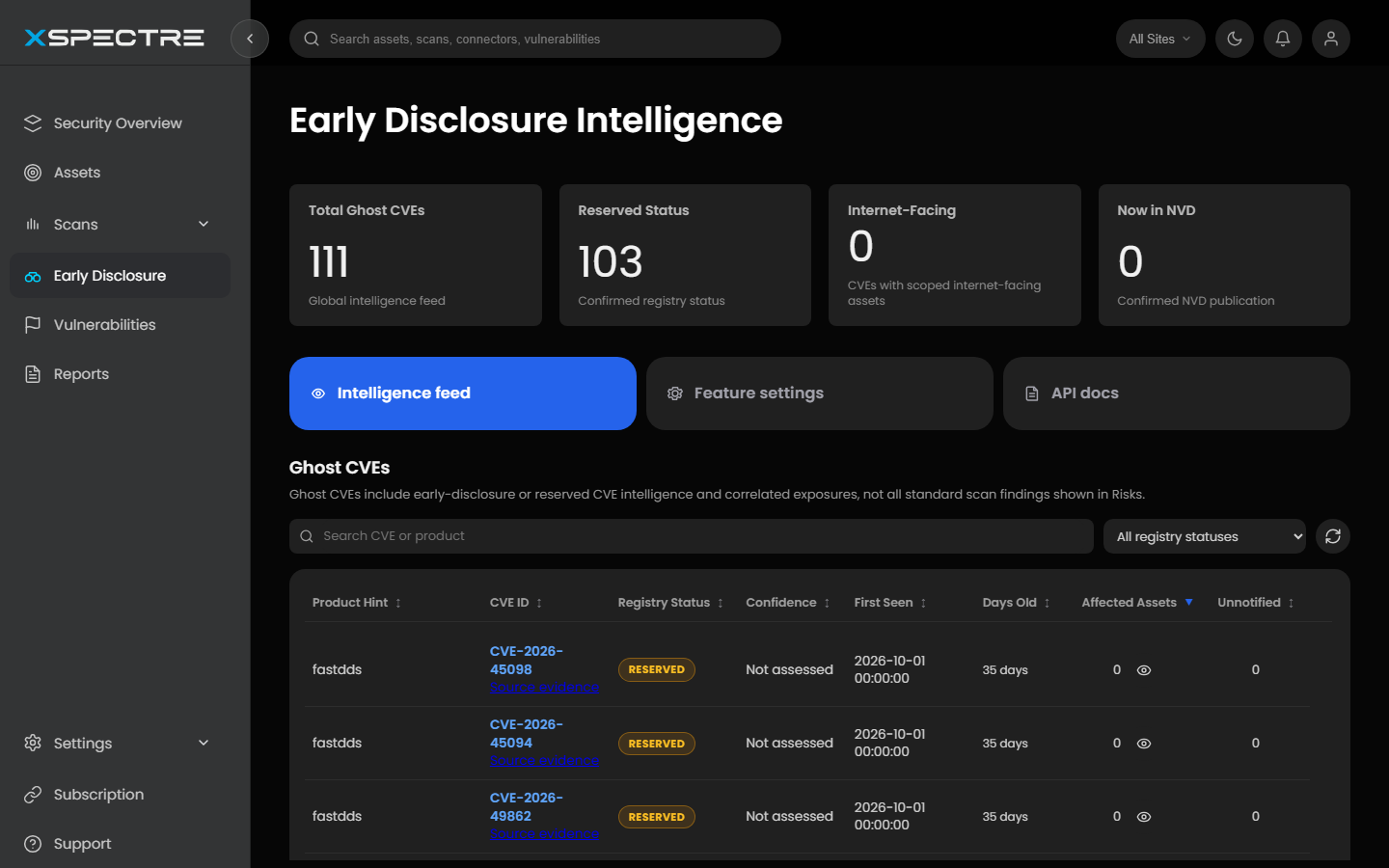
Open it from Early Warning in the left menu. Results follow the organisation and site you select in the top bar.
Who has it
Early Warning is included in Professional and Enterprise plans and available as an add-on for Essentials. Contact your account manager or support to enable it.
Who can see it
| Role | What they see |
|---|---|
| Administrator and Partner | All tabs, including Settings. |
| Analyst | Warnings, Affected devices and API docs. No Settings tab. |
| Viewer | The menu item, but the warnings do not load. Ask an administrator if you need access. |
If it is not enabled
If Early Warning is not switched on for your organisation, the table shows Early warnings could not be loaded. A message below it says the feature is not enabled for your organisation, with a Retry loading warnings button. Contact your account manager or support to enable it.
Tabs
Early Warning has these tabs:
- Warnings: the early warnings table. See Warnings tab.
- Affected devices: each match between a warning and one of your devices. See Affected devices.
- Settings: shown to administrators and partners only. See Settings.
- API docs: see API docs.
Three overview cards sit above the tabs: Early Warning Status, Warnings by Stage and Your Exposure. Use Refresh feed next to the page title to load the latest warnings.
Overview cards
Early Warning Status
Your Exposure Score shows how exposed you are to flaws that standard scans cannot see yet. It runs from 0 to 100. Higher is worse. The card shows the level, Score (out of 100) and Points.
| Level | What it means |
|---|---|
| Clear | No early warnings affect your devices. |
| Low | Keep an eye on these. |
| Moderate | Review affected devices. |
| High | Act soon. |
| Critical | Act now. |
Below the level, a line such as 3 of 120 warnings affect you shows how many tracked warnings match your devices. If any affected devices are internet-facing, the card also shows Act on N internet-facing devices first.
Internet-facing matches can raise the level even when the score is low:
- A match of 60% confidence or more on an internet-facing device makes the level at least Moderate.
- Five or more matches of 70% confidence or more on internet-facing devices make it at least High.
- A match of 60% confidence or more on an internet-facing device, for a flaw that is actively exploited, makes it Critical.
If the score cannot be worked out, the card shows Score unavailable.
Simple and Technical views
Use Show Technical and Show Simple on the Early Warning Status card to switch views. The view also changes how the Warnings tab table shows status, confidence and dates.
The Technical view adds the factors behind the score. Hover over a factor to see how it is weighted.
| Factor | What it shows | How it is weighted |
|---|---|---|
| Reach | How many matches are internet-facing and how many are internal. | Internet-facing = 1.0, internal only = 0.3. |
| Confidence | Average match confidence across your matches. | Match confidence as a fraction (60% = 0.60). |
| Age | The oldest number of days a matched flaw has gone without an official record. | Days without an official record (0–7 = 0.6 … over 90 = 1.2). |
| Exploit | How many matches are actively exploited, or None known. | Actively exploited (for example, listed by CISA as a known exploited vulnerability) = ×1.5, otherwise ×1.0. |
Warnings that are Officially Listed add nothing to the score, because your regular scans already cover them.
Warnings by Stage
Warnings that affect your organisation, grouped by where they sit in the official process:
| Stage | What it means |
|---|---|
| Awaiting Details | ID issued, official record not released. |
| Early Report | Public evidence, not yet confirmed in the CVE registry. |
| Published, NVD Pending | Official CVE record out, NVD has not analysed it yet. |
| Officially Listed | Now covered by your regular scans. |
| Total Tracked | All warnings we track globally, not only those that affect you. |
Your Exposure
Matches for devices in your selected organisation and site.
| Tile | Shows |
|---|---|
| Affecting Your Systems | Warnings with internet-facing matches. |
| Not Yet Alerted | Matches with no alert sent yet. |
| Affected Devices | Unique devices with at least one match. |
| Now Officially Listed | Matched warnings now published in NVD. |
Select View all to open the Affected devices tab.
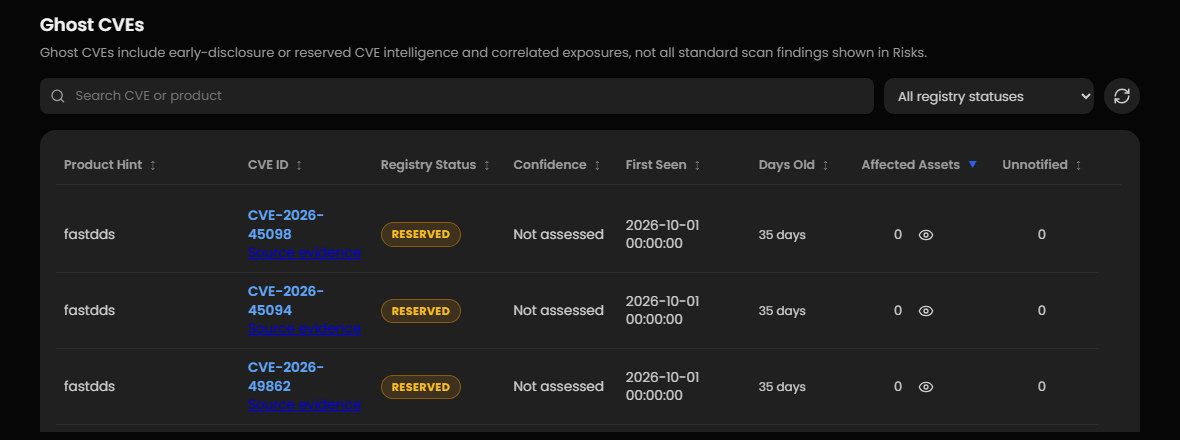
Warnings tab
Early warnings are kept separate from your normal scan results under Vulnerabilities.
Filter the table with the Official status list (All statuses by default) or Search software or reference number. Select a row to open Affected devices filtered to that warning.
| Column | Shows |
|---|---|
| Affected Software | The software the flaw affects. |
| Reference | The CVE ID, linked to its record on cve.org. No ID yet means no ID has been assigned. Source evidence links to the public report. |
| Official Status | Simple: the stage (Awaiting Details, Early Report, Published, NVD Pending, Officially Listed or Rejected). Technical: the CVE registry status, such as Reserved or Published. |
| Confidence | Simple: High (80% or more), Medium (50–79%), Low (below 50%) or Under review. Technical: the percentage, or Not assessed. |
| First Reported | When the flaw was first reported publicly. Technical adds the time. |
| Days Without Record | How many days the flaw has gone without an official record. In Simple, Officially Listed warnings show a dash. |
| Your Devices | How many of your devices match. A dot means at least one is internet-facing. Select the number to see the devices. |
| Not Yet Alerted | Matches with no alert sent yet. |
A warning marked EXPLOITED is listed in CISA's Known Exploited Vulnerabilities catalogue.
If the table is empty, you will see one of these:
- No early warnings available for this scope. No warnings for the selected organisation and site.
- No early warnings match the current filters. Clear the search or status filter.
- Early warnings could not be loaded. Select Retry loading warnings. See also If it is not enabled.
Affected devices
The Affected devices tab lists each match between a flaw and one of your devices.
- Tiles: Total Exposures, Internet-Facing and Not Yet Alerted.
- Filters: Internet-Facing Only, Not Yet Alerted Only and Search by CVE ID.
| Column | Shows |
|---|---|
| CVE ID | The flaw, linked to its record on cve.org. |
| Status | The CVE registry status. |
| Asset | The device's hostname or IP address. |
| Site | The site the device belongs to. |
| Exposure Level | Internet, Internal, Isolated or Unknown. |
| Internet-Facing | Yes or No. |
| Match Confidence | How likely it is that the device runs the affected software, or Not assessed. |
| Detected | When the match was found. |
| Alerted | A tick if an alert has been sent. Otherwise, a Mark notified button. |
Hover over a Match Confidence value to see what it means:
| Confidence | Label |
|---|---|
| 85% and above | Definitely affected |
| 60–84% | Likely affected |
| 30–59% | Possible match |
| Below 30% | Low confidence |
Use Mark notified once you have told the owner of the affected device. Confirm with Mark notified in the dialog.
If the table is empty, you will see No exposures found for the current filter. If it fails to load, you will see Exposure details could not be loaded. with a Retry exposures button.
What to do with a warning
- Start with warnings marked EXPLOITED on internet-facing devices.
- Check the vendor's advisory (from the reference) for a patch or workaround.
- Apply the fix or mitigation, or limit exposure (for example restrict access to the service).
- Use Mark notified so your team knows the owner has been told.
Settings
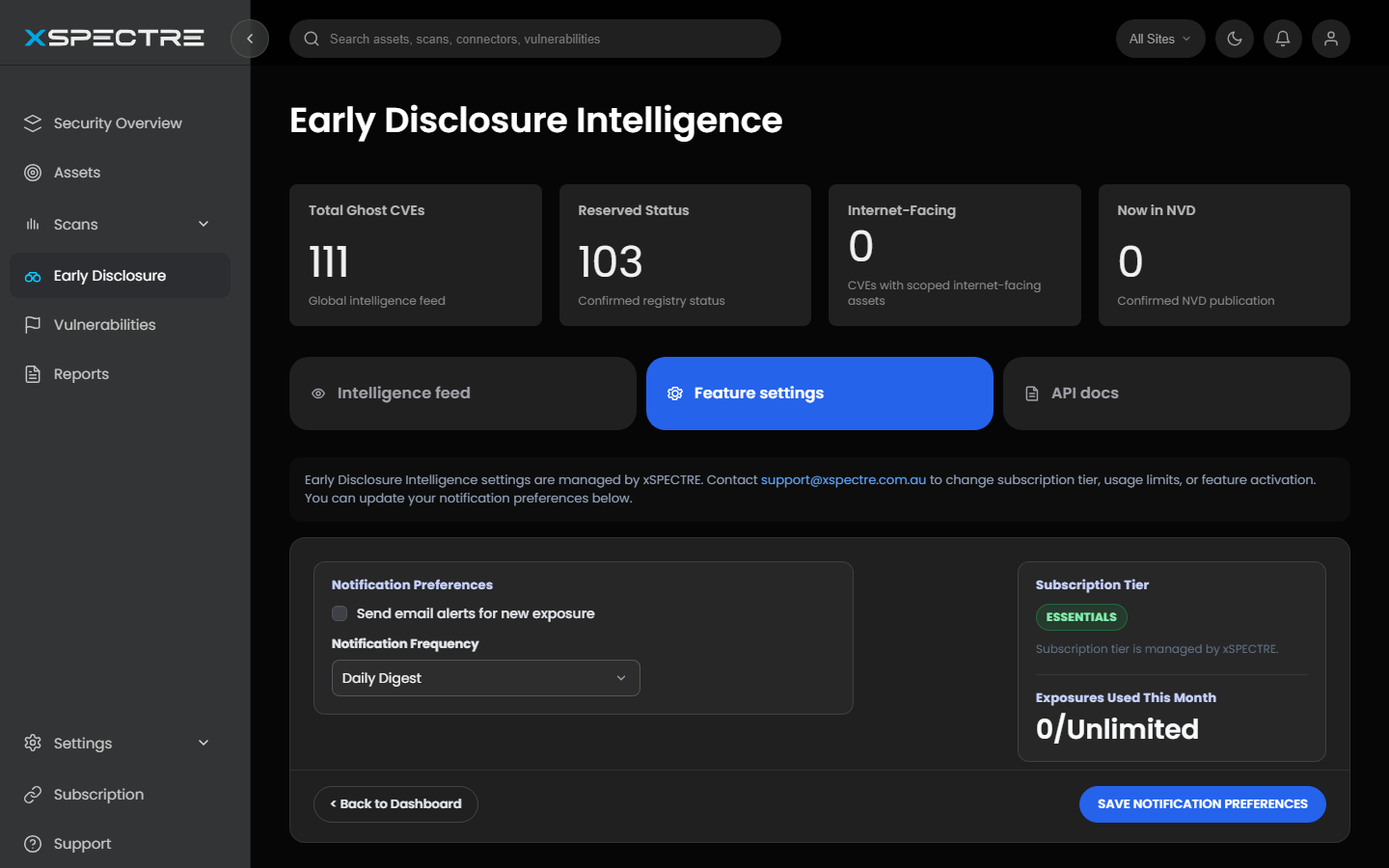
Administrators and partners can open the Settings tab. Your plan, usage limits and whether the feature is switched on are managed by xSPECTRE. Contact support to change them.
Under Notification Preferences you can set:
- Send email alerts for new exposures: on or off.
- Notification frequency: Immediate, Daily Digest or Weekly Digest.
Select Save notification preferences to save.
The panel on the right shows your Subscription Tier and Exposures Used This Month.
API docs
The API docs tab explains that the APIs let your own systems pull summary and exposure data, and mark exposures as notified. Full request and response details are in the platform API documentation.
Alert emails
When new matches are found, xSPECTRE emails your organisation's administrators. The subject reads [xSPECTRE] Early Warning - N matches on your devices, followed by your organisation name.
The email shows:
- How many matches were found, and your exposure level.
- Tiles for Total matches, Internet-facing and Internal.
- A callout if any internet-facing devices are affected.
- Affected devices: one card per match, with the CVE ID and software, Device, Site, Official status (and days without an official record), Match confidence and Why it matched. Cards are flagged INTERNET-FACING or ACTIVELY EXPLOITED where that applies.
- A Review in Dashboard button.
- What to do next: steps to work through the matches.
Long lists are cut short, and the email tells you how many more matches are in the dashboard.