Scan network and allow-listing
If a firewall, web application firewall (WAF) or intrusion prevention system protects your systems, it may block or slow xSPECTRE's scans. Blocked scans produce incomplete results, so allow-list xSPECTRE before you scan.
The Scan network page is under Settings › Scan network and is available to administrators and partners.
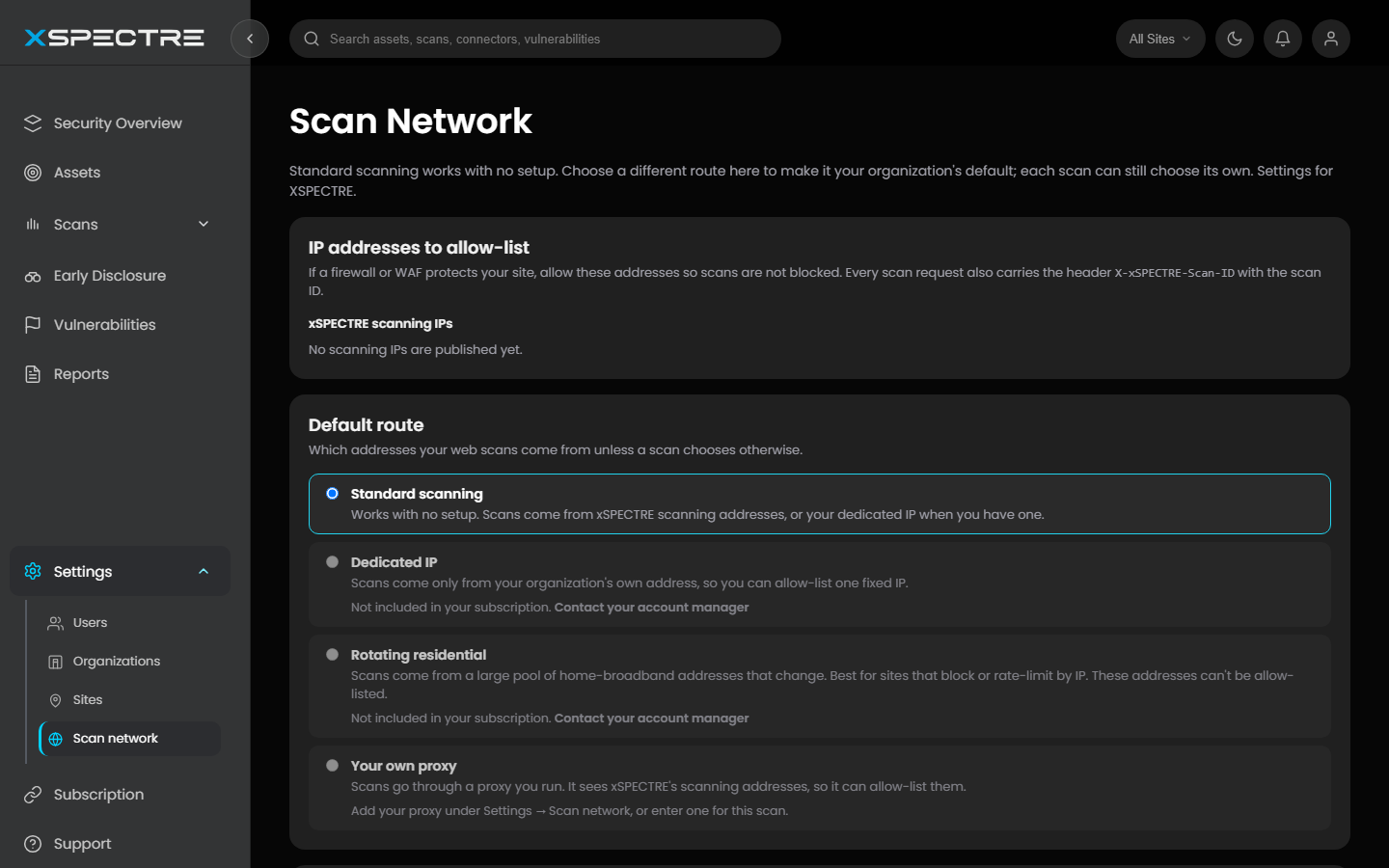
IP addresses to allow-list
The IP addresses to allow-list section lists:
- xSPECTRE scanning IPs: the addresses our scans come from.
- Your dedicated IPs or Your static residential IPs, if your organisation has them.
Add these addresses to the allow-list on your firewall or WAF. Every scan request also carries the header X-xSPECTRE-Scan-ID with the scan's ID, so you can recognise our traffic in your logs.
You can also switch on Addresses to allow-list in the scan form to see the addresses for that scan.
You do not need to turn your WAF off. Allow-listing xSPECTRE's addresses (or the scan header) is enough, and keeps the rest of your protection in place.
Default route
Default route sets which addresses your web scans come from, unless a scan chooses otherwise:
| Route | Use it when |
|---|---|
| Standard scanning | Works with no setup. Scans come from xSPECTRE scanning addresses, or your dedicated IP when you have one. |
| Dedicated IP | You want to allow-list one fixed address that only your organisation uses. |
| Rotating residential | Your site blocks or rate-limits by IP. These addresses change and can't be allow-listed. |
| Your own proxy | Scans go through a proxy you run, which sees xSPECTRE's scanning addresses. |
Some routes are not included in every subscription. Where a route shows "Not included in your subscription", contact your account manager.
In the scan form, Route for this scan overrides the default for one scan, and If this route isn't available sets what happens if it can't be used.
Logged-in scanning
Save a login for a site so web scans can test pages behind a sign-in. Choose Login page (username and password) or Fixed header or token. Use a dedicated test account. See Web Scans.
API definitions and request rate
- API definitions: add an OpenAPI/Swagger or GraphQL definition so web scans can test your API.
- Request rate: limit how fast scans send requests, for sites that are sensitive to load.