Security Overview
Security Overview is the first page you see after signing in. It summarises your security position for the organisation and site selected at the top of the page.
Use the date filter to change the period for trends and counts: 7 days, 1 month, 3 months, 6 months, 1 year or All time. The Security Health score always shows your current position, whatever range you pick.
Finish setting up
New accounts see a Finish setting up card. It asks "What would you like to protect?" and for a Site name. Select Do this now to set it up, or Skip for now to come back to it later.
The cards
Security Health
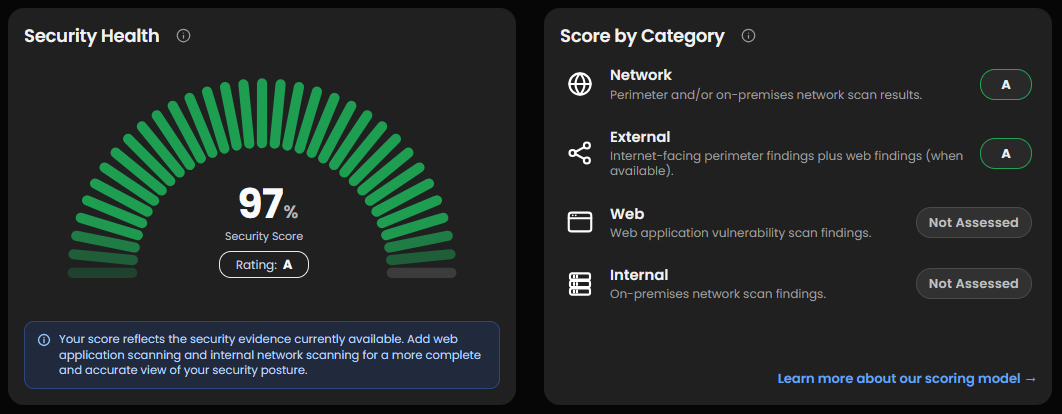
Your overall score from 0 to 100%, with a rating from A to F. If you are not yet scanning every area, a note explains which scanning would give a more complete view, with an Increase My Coverage button.
Read Security Health score to understand how it is worked out.
Score by Category
A grade for each area: Network, External, Web and Internal. Not Assessed means that area is not being scanned yet.
Open Security Findings
How many Critical, High, Medium and Low findings are open, plus how many are Accepted and Resolved. Select View all to open Vulnerabilities.
Security Services
Shows which scanning services are active for you: Internet Perimeter, Web Application Security and Internal Network Security, each marked Active or Not Active. From here you can run or view scans for active services, or see plans that add the others (Compare plans →).
Latest Scans
Your most recent scans and their status (Completed, In progress, Scheduled, Failed or Recovering). Select View all to open Scans.
Security Insights
Shortcuts to Understand Your Risk (view findings), Improve Your Posture (view recommendations) and Track Your Progress (view reports).
Top Vulnerable Hosts
The hosts with the most findings, with their hostname, IP address and counts by severity. Start remediation here.
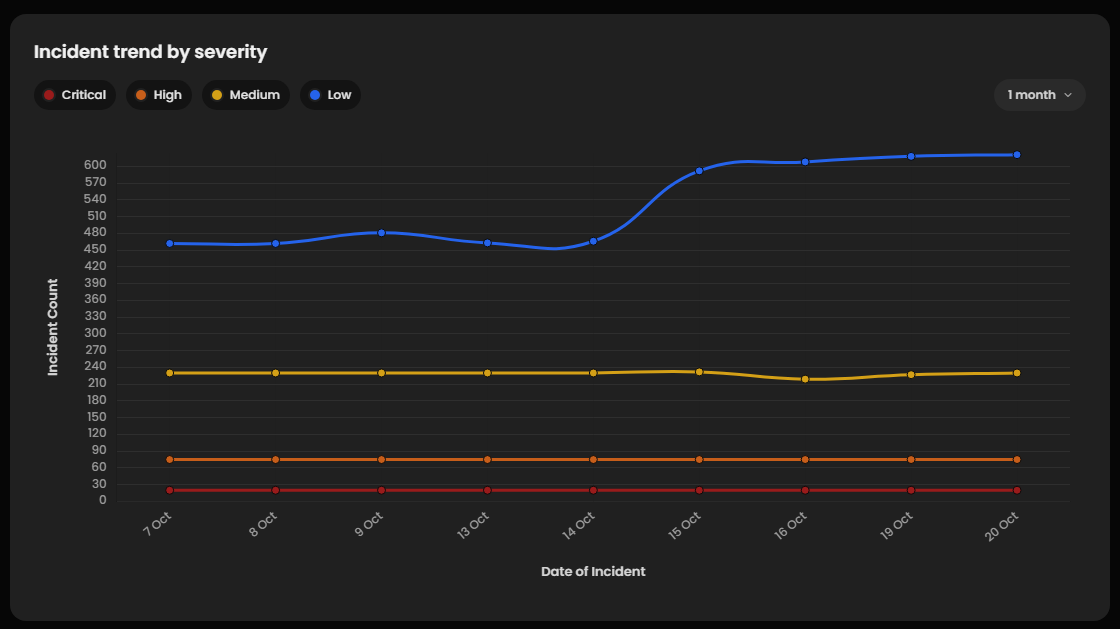
Incident trend by severity
How open findings by severity have changed over the selected period.
Common questions
Why is a card empty? You may not have a completed scan for the selected organisation or site yet, or the date range may be too short. Try All time and All Sites.
Why does Security Services say Not Active? That scanning service is not part of your current plan, or has not been set up. See Plans and billing.