Security Health score and grades
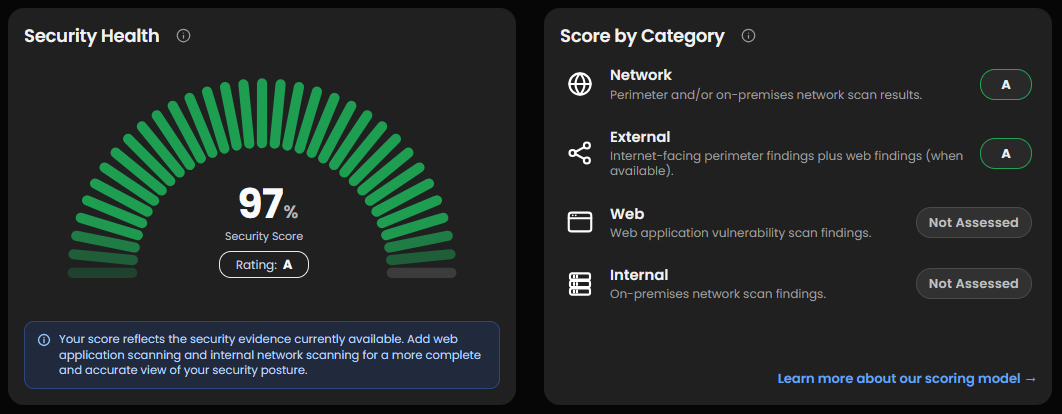
The Security Health card on the Security Overview gives you one number, from 0 to 100%, and a Rating from A to F. Higher is better.
What the score measures
Your score reflects the open vulnerabilities found in your most recent completed scans.
- Critical and High findings have the biggest impact.
- Medium and Low findings still count, but large numbers of them won't outweigh serious issues.
- A completed scan with no open findings scores 100%.
- Findings marked Accepted, False Positive, Closed or Duplicate, and informational results, do not count.
The score only covers the services currently scanning your environment. It is a guide to your measured risk, not a guarantee that you are secure.
Grades
| Score | Rating | Meaning |
|---|---|---|
| 90% and above | A | Excellent |
| 80–89% | B | Good |
| 70–79% | C | Fair |
| 60–69% | D | Poor |
| Below 60% | F | Critical attention needed |
How it is worked out
Each open finding adds risk according to its severity. Some findings weigh more because of the context they are found in:
| Factor | Effect |
|---|---|
| Severity | Critical weighs far more than High; High far more than Medium; Low adds a little. Informational adds nothing. |
| Exposure | Findings on internet-facing systems weigh more than the same finding on an internal system. |
| Threat intelligence | Findings with a known public exploit, a high likelihood of exploitation, or listed as known-exploited weigh more. |
| Asset importance | Findings on more important assets can weigh more. |
| Overdue fixes | Where a fix due date applies, findings left open past it weigh more over time. |
Within each severity, the first few findings count almost fully and each extra one counts a little less. This means a long list of minor issues cannot outweigh a serious one. As a guide, a single open Critical finding on its own usually brings the score down to around a D.
Clean assets don't dilute the score: adding more assets with no findings doesn't hide findings elsewhere.
Score by Category
The Score by Category card grades each area separately:
| Category | Based on |
|---|---|
| Network | Perimeter and/or on-premise network scan results. |
| External | Internet-facing perimeter findings, plus web findings when available. |
| Web | Web application scan findings. |
| Internal | On-premise network scan findings. |
Categories overlap, so your overall score isn't an average of them. Not Assessed means that area isn't being scanned yet. It doesn't lower your score, but risks there aren't reflected in it.
When there is no score
| Message | What to do |
|---|---|
| Insufficient data | No completed scan yet for this organisation or site. Run a scan, or choose All Sites. |
| Score unavailable / Unable to load score | Refresh the page. If it continues, contact support. |
Coverage message
If you are not scanning every area, the card shows a note such as: "Your score reflects the security evidence currently available. Add web application scanning and internal network scanning for a more complete and accurate view of your security posture." Select Increase My Coverage to see options.
How to improve your score
- Fix Critical and High findings first. They improve the score the most.
- Prioritise internet-facing systems.
- Review findings that do not apply and mark them False Positive with a note, or Accept Risk where your organisation has decided to accept them.
- Run scans regularly so the score reflects your current position. A score is based on your most recent completed scans.