Working with vulnerabilities
Vulnerabilities in the left menu lists every finding from all your scans, for the organisation and site selected at the top of the page.
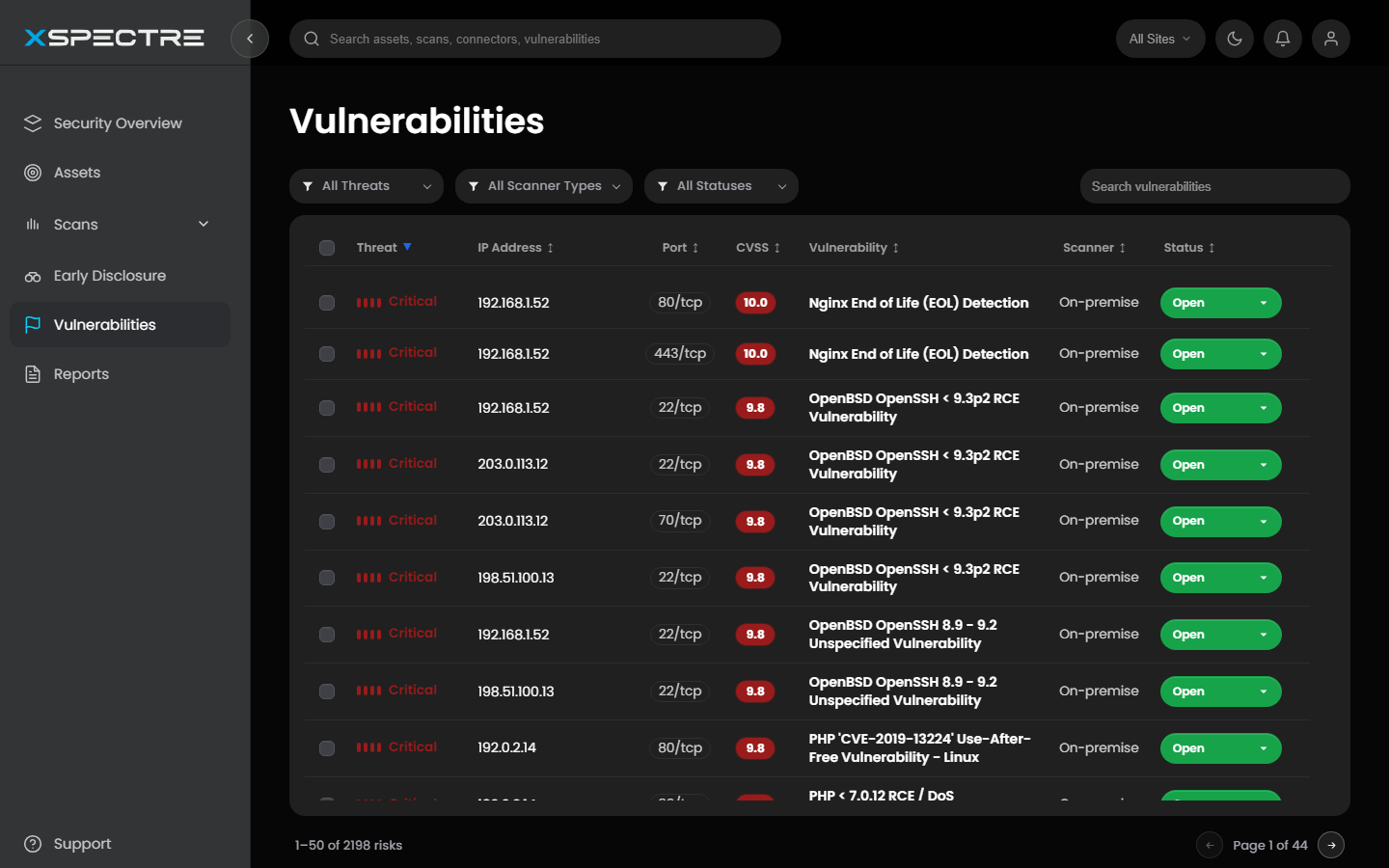
Columns
| Column | Shows |
|---|---|
| Threat | Severity: Critical, High, Medium or Low. |
| IP Address / Port | Where the issue was found. |
| CVSS | CVSS base score, where available. |
| Vulnerability | The name of the issue. Select it to open the detail page. |
| Scanner | Web Scan, Perimeter or On-premise. |
| Status | Open, Accepted, False Positive, Closed or Duplicate. |
Filter and search
- All Threats: show one severity.
- All Scanner Types: Web Scan or Network findings only.
- All Statuses: the list opens on Open findings; choose another status or all statuses.
- Search vulnerabilities: search by name, IP address and more.
- If you arrived from the Security Overview, the overview's date range is carried across.
The Vulnerability Detail page
Select a finding to open Vulnerability Detail.
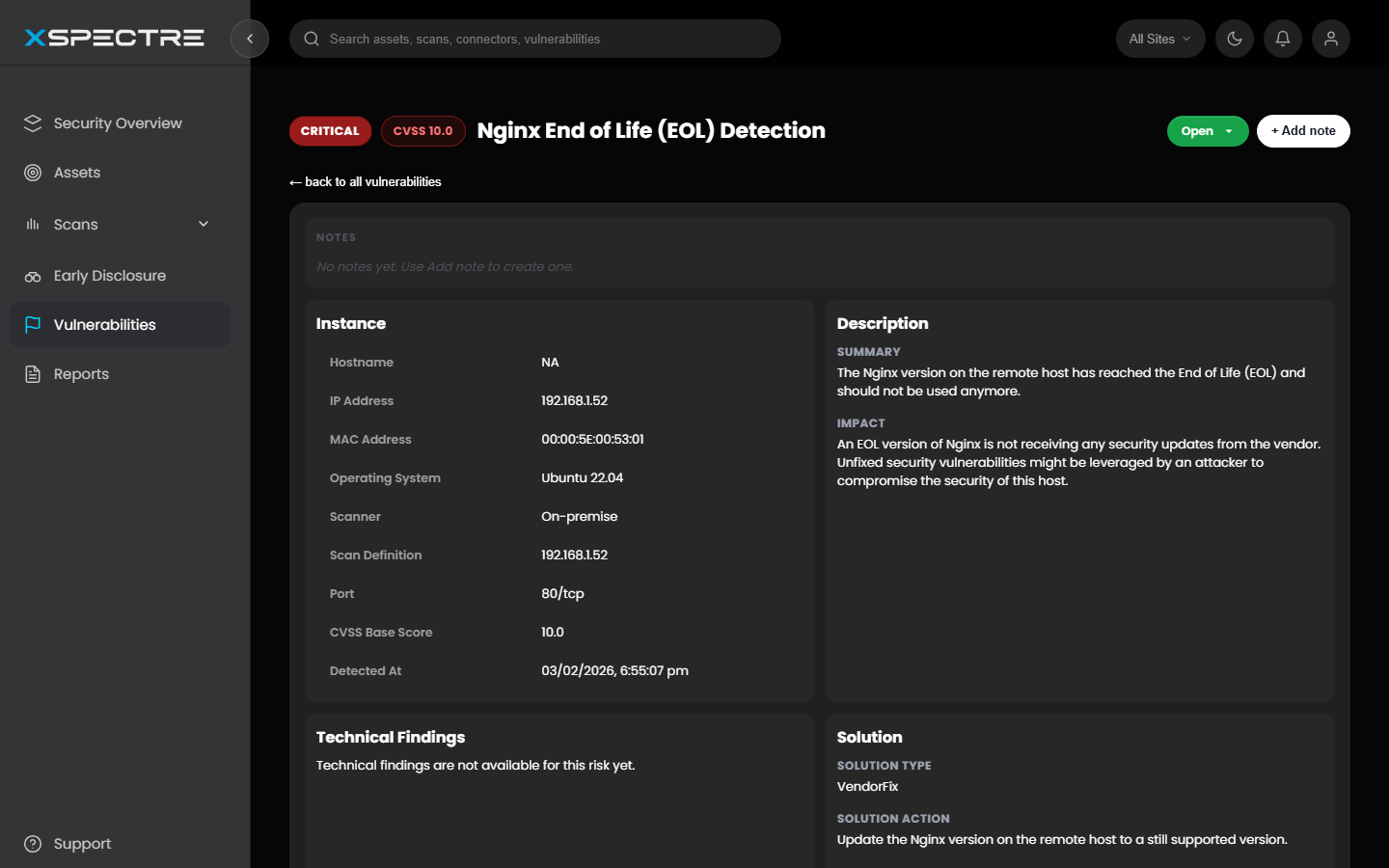
| Section | What it tells you |
|---|---|
| Header | Severity and CVSS badges, the status menu and + Add note. |
| Notes | Your team's notes and status changes, newest first. |
| Instance | Hostname, IP Address, MAC Address, Operating System, Scanner, Scan Definition, Port, CVSS Base Score and Detected At. |
| Description | A summary of the issue and its impact. |
| Technical Findings | Evidence from the scan, where available. |
| Solution | The type of fix and the recommended action. |
| Vulnerability Details and References | Identifiers (such as CVE) and links to vendor advisories. |
Use ← back to all vulnerabilities to return to the list with your filters kept.
Change a finding's status
- Open the finding.
- Choose a status from the menu at the top right: Open, Accept Risk, False Positive or Close.
- Enter a note. A note is required for every status change, so your team and auditors can see why.
What each status means: Finding statuses.
Act on several findings
Tick the boxes next to findings, then use the buttons above the list:
- Change status (N): change all selected findings at once (a note is required).
- Generate Report (N): create a report from just these findings. See Generate a report.
- Delete (N): permanently remove the selected findings. This cannot be undone.
Exporting findings
There is no CSV export from this page. To share findings, generate a report (PDF, or a JSON evidence package).